Overview
Before you can start quoting customers or using the Sales Tool calculator, you'll need to set your resale pricing. This is where you decide what you charge your customers for each cloud resource, and Cloud Command calculates your profit margins in real time.
The Resale Pricing page lives under Sales Tool > Resale Pricing in your partner portal navigation. You'll find three tabs: IaaS, VPS, and Backups, each representing a different type of cloud workload.
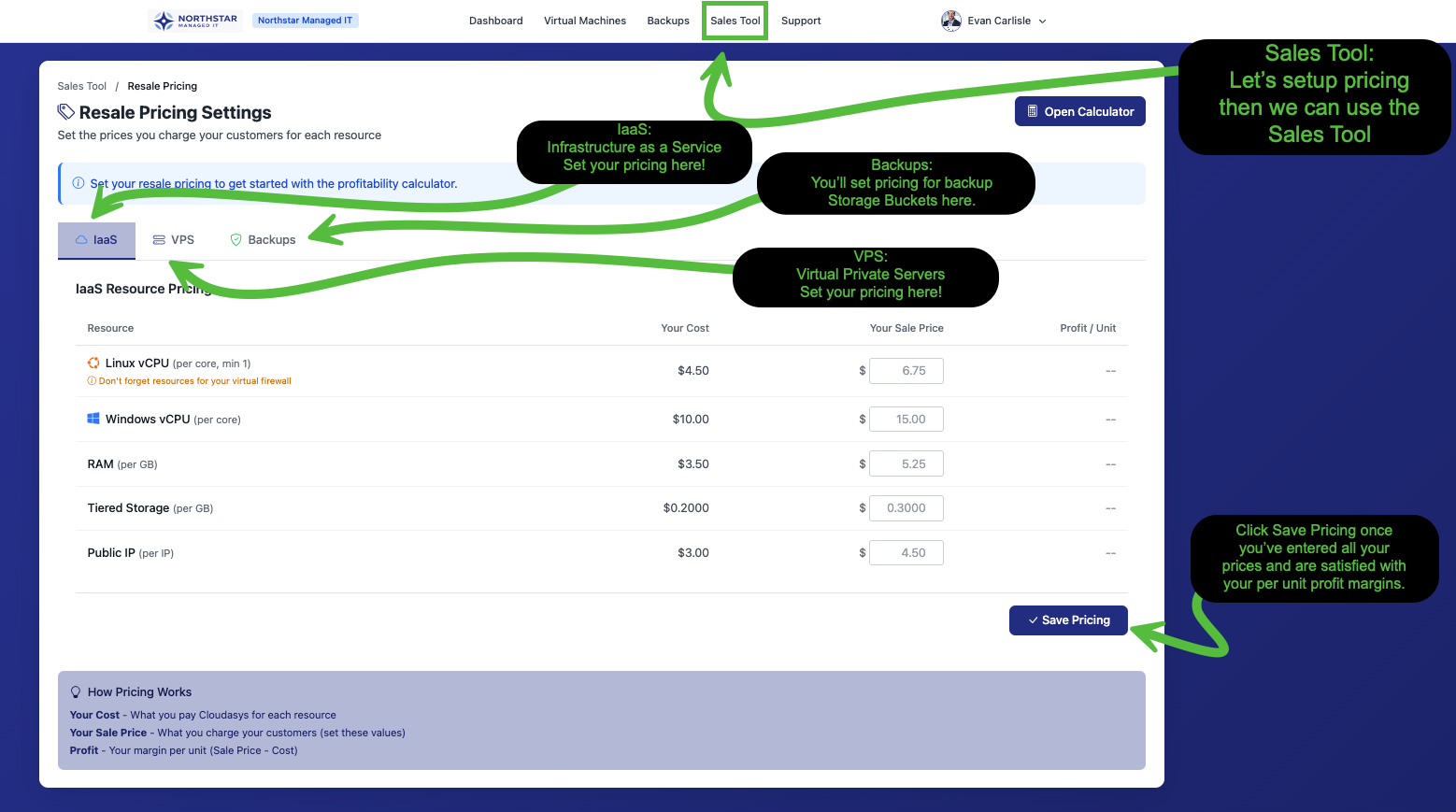
The page shows your cost from Cloudasys, a field where you enter your sale price, and a live profit calculation for each resource. Once your pricing is saved, the Sales Tool calculator and profitability reports use these numbers automatically.
Why Different Pricing for Different Workloads
You'll notice that the same resource (like a Linux vCPU) has a different cost on the IaaS tab versus the VPS tab. That's not a mistake. Cloudasys operates purpose-built clusters that are optimized for specific workload types, and the underlying hardware is different for each one.
IaaS Clusters (Infrastructure as a Service)
These are 3 to 8 node clusters running Tiered Storage with Intel Xeon Gold 2.4GHz or higher dual-CPU chassis. Each node packs 384GB to 1024GB of RAM. They're built for high I/O and heavy compute workloads where your customers need dedicated resource pools with full control over their virtual infrastructure.
VPS Clusters (Virtual Private Servers)
VPS clusters are 3+ node clusters running All Flash Storage with Intel Xeon Gold 2.4GHz or higher dual-CPU chassis. Each node has 256GB to 512GB of RAM, and some include GPU capabilities. All Flash Storage delivers faster disk performance at a lower cost per unit, which is why VPS pricing is lower than IaaS. These clusters are built for high I/O compute workloads like individual virtual servers.
DRS / Backup Clusters
These are 3+ node clusters running Tiered or Spinning Storage with Intel Xeon Silver 2.0GHz or higher dual-CPU chassis. Each node has 256GB to 512GB of RAM. They're purpose-built for storing backups and providing compute for Instant Restore and DRaaS (Disaster Recovery as a Service) failover workloads. The storage is optimized for capacity rather than raw performance, keeping backup costs manageable for your customers.
Getting to Resale Pricing
From your partner portal, click Sales Tool in the top navigation bar. Then select Resale Pricing from the dropdown. You'll land on the pricing page with the IaaS tab selected by default.
Setting IaaS Pricing
Click the IaaS tab to set pricing for Infrastructure as a Service resources. You'll see a row for each billable resource with your cost from Cloudasys and a field to enter your sale price.
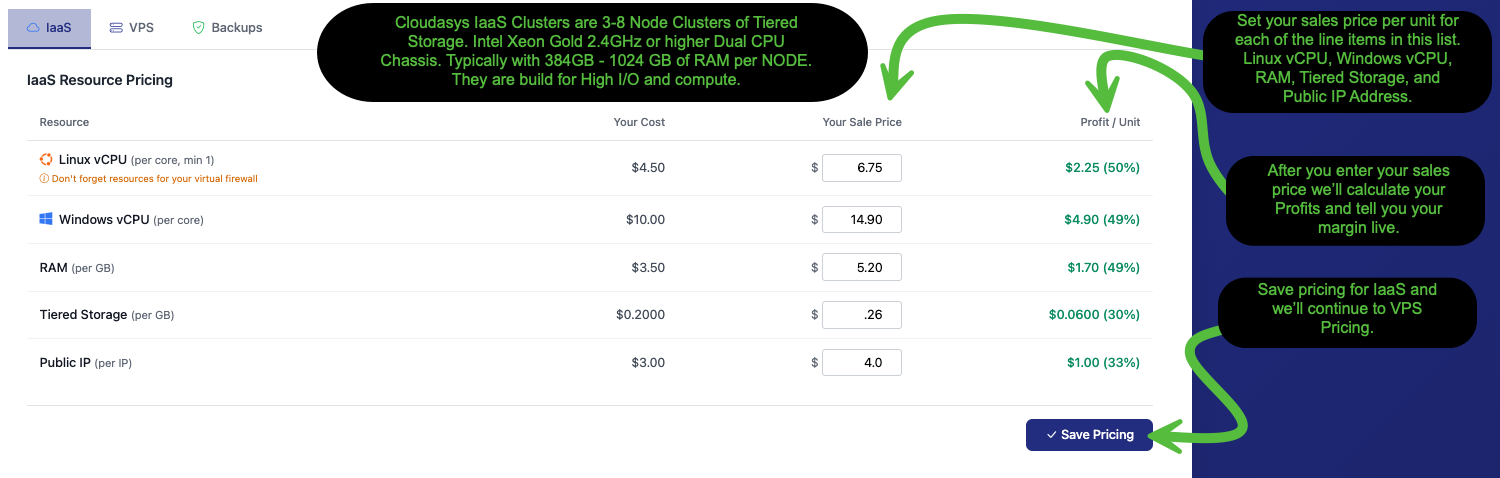
Here's what each resource line item means:
- Linux vCPU (per core, min 1) The per-core monthly cost for Linux virtual machines. The note reminds you to account for resources needed by your customer's virtual firewall.
- Windows vCPU (per core) The per-core monthly cost for Windows virtual machines. This is higher than Linux because it includes Windows licensing.
- RAM (per GB) The monthly cost per gigabyte of memory allocated to a VM.
- Tiered Storage (per GB) The monthly cost per gigabyte of disk storage. IaaS clusters use Tiered Storage, which combines SSD and HDD tiers for a balance of performance and capacity.
- Public IP (per IP) The monthly cost for each public IP address assigned to a customer.
Enter your sale price for each resource. As you type, the Profit / Unit column updates instantly to show your margin in dollars and as a percentage. When you're happy with your prices, click Save Pricing.
Setting VPS Pricing
Click the VPS tab to set pricing for Virtual Private Server resources. The resource line items are similar to IaaS, but you'll notice the lower costs thanks to the All Flash Storage architecture.
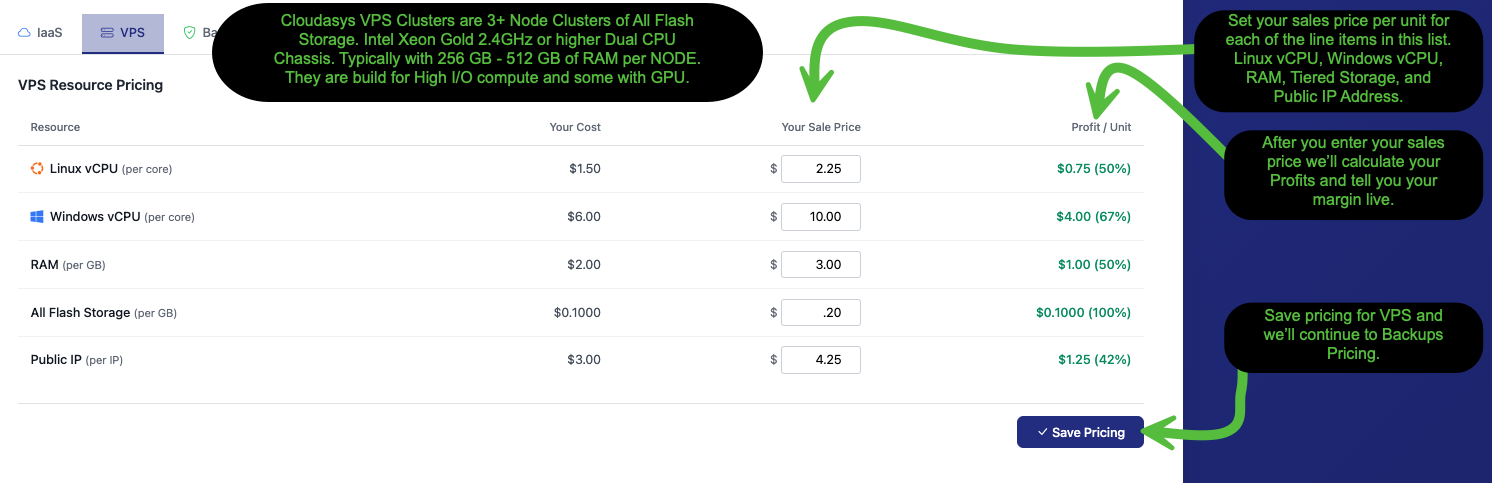
The resources are the same categories as IaaS, with one key difference:
- All Flash Storage (per GB) replaces Tiered Storage. All Flash means NVMe/SSD-only storage, delivering faster performance at a lower per-GB cost than Tiered Storage.
Set your sale price for each VPS resource and click Save Pricing. The platform calculates your profit per unit in real time so you can find the sweet spot between competitive pricing and healthy margins.
Setting Backup Storage Pricing
Click the Backups tab to set pricing for backup storage buckets. Unlike IaaS and VPS which price resources individually (per core, per GB), backup pricing uses predefined storage tiers ranging from 128GB all the way up to 20TB.
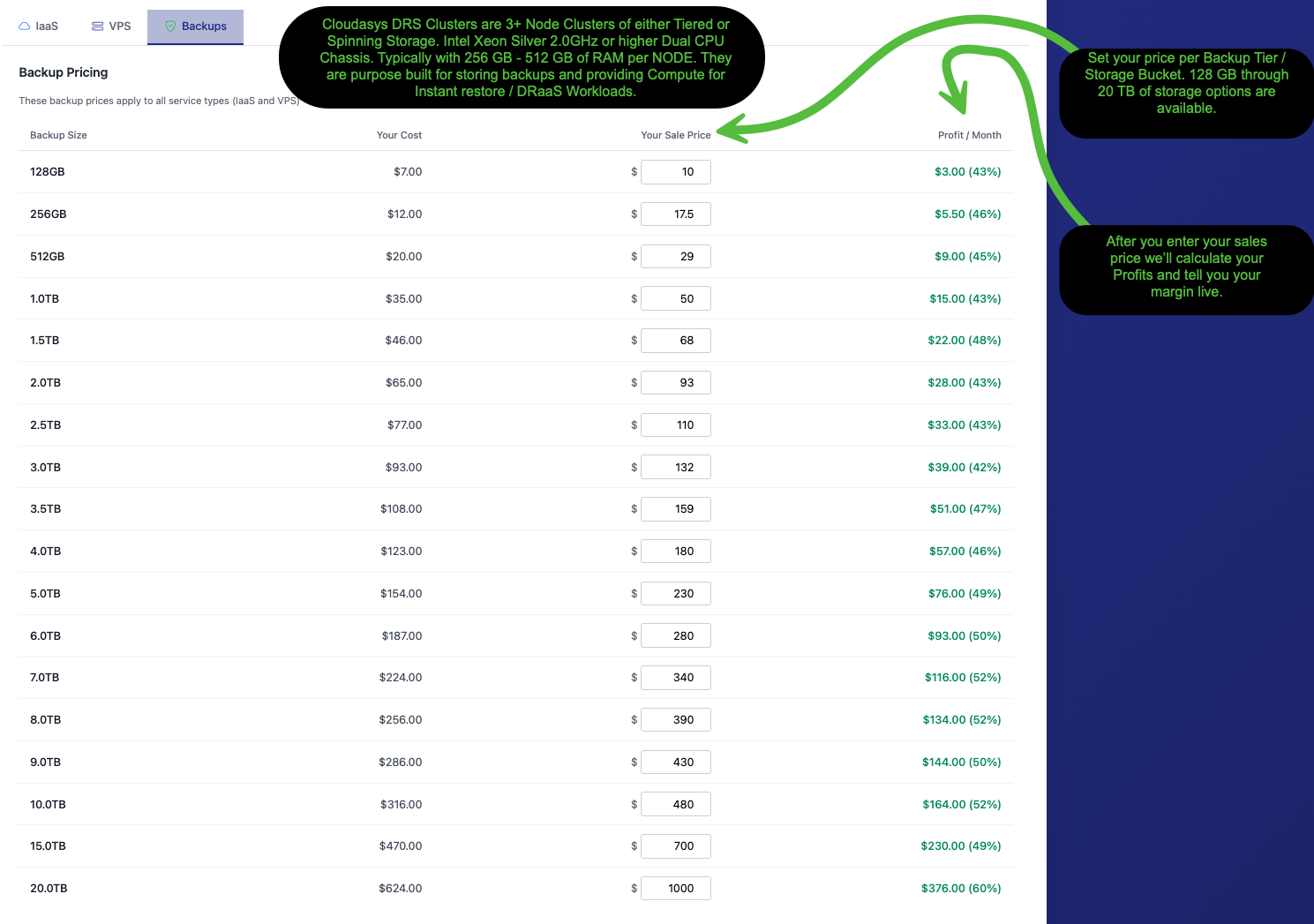
Each row represents a backup storage bucket size. Your customers select the bucket that fits their backup needs, and they can upgrade to a larger bucket at any time. Here's a quick guide to the tiers:
| Tier | Best For |
| 128GB - 512GB | Small VMs, individual server backups |
| 1TB - 3TB | Mid-size environments, multiple VM backups |
| 3.5TB - 10TB | Larger environments, file servers, databases |
| 15TB - 20TB | Enterprise workloads, full environment protection |
Backup pricing applies to all service types, both IaaS and VPS customers. Set your price for each tier and the Profit / Month column will show your margin instantly.
Setting Restore Pricing
Scroll down below the backup storage tiers on the Backups tab to find the Restore Pricing section. This covers the one-time fees charged when a customer needs to restore a VM from backup.
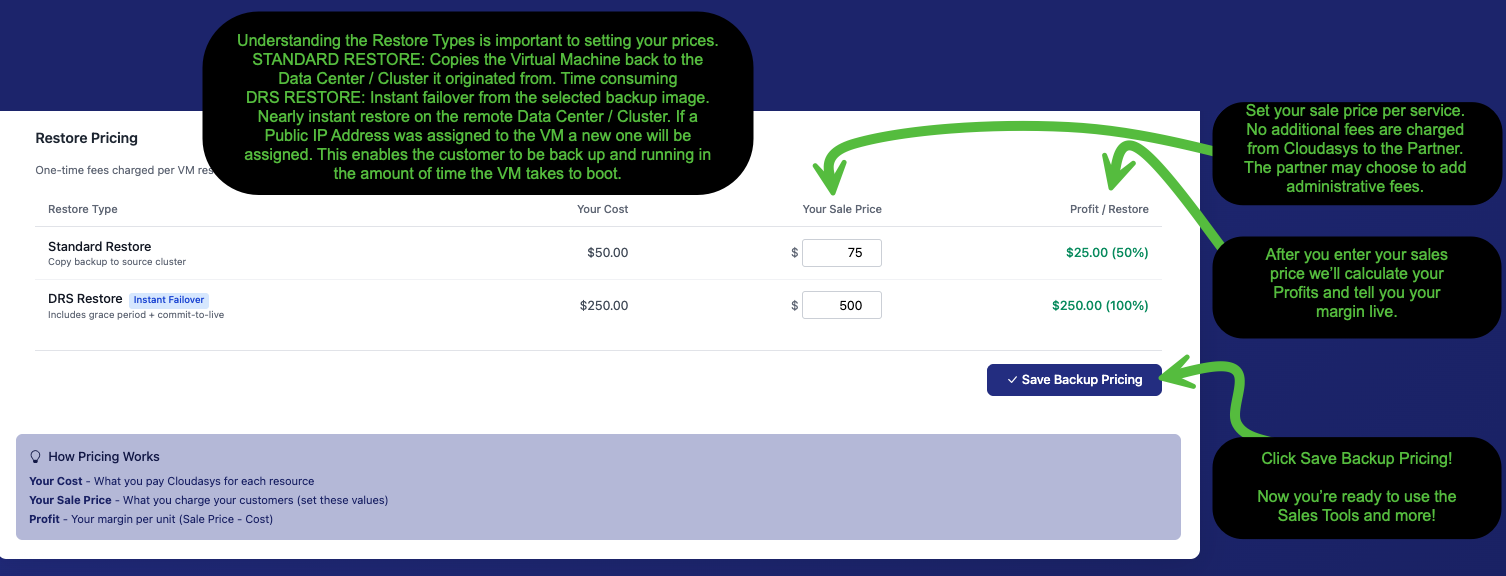
There are two restore types, and understanding the difference will help you set appropriate pricing for each:
- Standard Restore copies the virtual machine back to the data center and cluster it originated from. This process takes time depending on the VM size because the full backup image needs to be transferred back to the source cluster. It's the traditional restore path for recovering from data loss or corruption.
- DRS Restore (Instant Failover) is a near-instant restore that boots the VM directly from the selected backup image on the remote DRS cluster. If the original VM had a public IP address, a new one is automatically assigned. This gets the customer back up and running in the time it takes the VM to boot. It includes a grace period before the commit-to-live decision, giving you time to assess the situation before making it permanent.
Set your sale price for each restore type and click Save Backup Pricing.
Understanding Your Profit Margins
Every pricing table on the Resale Pricing page calculates your margins live as you type. Here's how the columns work:
| Column | What It Means |
| Your Cost | What you pay Cloudasys for each resource. This is your fixed wholesale cost. |
| Your Sale Price | What you charge your customers. You control this value entirely. |
| Profit / Unit | Your margin per unit, shown as a dollar amount and percentage. Calculated as Sale Price minus Your Cost. |
The profit percentage shows how much of each sale is pure margin. For example, if your cost is $1.50 and you sell at $2.25, your profit is $0.75 per unit at a 50% margin. Use these numbers to balance competitive pricing with sustainable margins across all your service offerings.
What's Next?
Once you've saved pricing for all three tabs (IaaS, VPS, and Backups), you're ready to start using the Sales Tool. Click the Open Calculator button at the top right of the Resale Pricing page, or navigate to Sales Tool in your portal navigation.
The Sales Tool calculator uses the resale prices you just set to generate customer quotes, calculate monthly recurring revenue, and identify new opportunities. It's your go-to tool for building proposals and understanding the revenue potential of each deal.
Need Help?
If you have questions about setting your resale pricing or need guidance on competitive pricing strategies, please submit a support ticket and our team will be happy to help.